

A 10 Step Guide for Hotels
Since its creation back in 2010, Pinterest estimates there are over 750 million pins in the ‘travel’ category, covering more than 1.5 million places and destinations all over the world. Some of the biggest names in Travel such as Lonely Planet, VisitBritain or Four Seasons Hotels & Resorts have already jumped on board, and have created visual tour and travel boards to inspire their followers.
What is Pinterest?
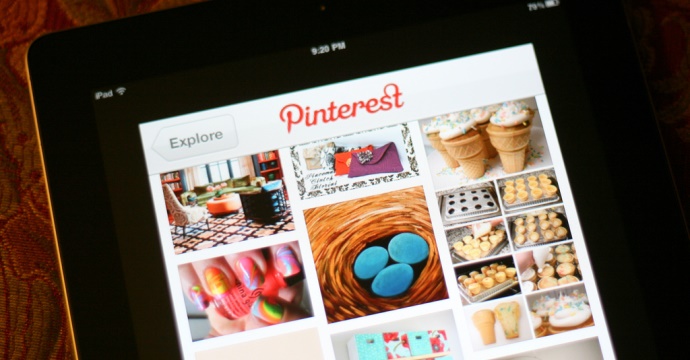
Pinterest is an image-led social media platform, where users (also known as Pinners) connect to each other, as well as their favorite brands, by displaying and swapping images, videos or any other content they identify with. Much like the concept of the old pin board, Pinners can create topical boards, and “pin” content to each board. They can also follow other Pinners’ boards and re-pin, or like their pins.
1. Create a Business Account
Go to https://business.pinterest.com/ and click “Join as a business”. If you are an existing Pinterest user, but signed up for a personal account, you can convert it to business by simply clicking on the “convert here” option instead.
Enter all the details such as business type – for small and independent hotels this should be under the local business category – contact name, email address and password.
Under the Profile Info section, enter your business name and select a username – if possible, always make your username the same across all accounts on social media platforms (e.g. Facebook, Twitter), as this allows for brand consistency.
You are also asked to upload a profile image – a logo for your hotel is the best option, alternatively you can select a nice exterior picture – as well as a small description, and your website address. Keep in mind Profile images look their best at 160 x 165 pixels.
Already a Pinterest business user? Skip to Step 2.
2. Log in
The easiest way is to log in with your business’ existing Twitter or Facebook account, but you can also log in by typing your email and password, as set up in Step 1.
3. Verify your Website
Show your customers you’re a trustworthy and official source. Also, by verifying your website, you can access Pinterest’s analytics feature, which allow you to track your followers’ actions, and how they are interacting with your profile. . (More on Pinterest analytics on Step 10)
Once you log in to your profile go to the menu in the upper right corner, and select Settings. Under the website field click Verify Website.
Follow the instructions on the next page. You can verify your website in two ways: with an HTML file or a META tag.
You might require the assistance of your website developer, but it should take them no longer than 5-10 minutes to do this.
Once your website’s been verified, you’ll be able to see a checkmark on your profile next to your website address, and will now have access to your web analytics once you’re logged in.
4. Create Boards
Creating boards is easy, just click on create board on your profile home page, and fill in the required details.
One of the great things about Pinterest is that once you “pin” something, it directs the user straight to the web address associated with the image or pin, so it is ideal to start building your boards around your products and directing them back to the hotel’s own website.
- Give your boards clear names so people can tell what’s on them (e.g. Rooms, Spa, Restaurant, Breakfast), but don’t be afraid to get creative – just keep it to 20 characters or less so it doesn’t get truncated. You should also include a short description and select a category for each board (e.g. travel, design, holidays & events), which can encourage people to follow your boards as well as helping you show up in searches.
- You can make your boards more interesting by selecting add a map. This allows you to relate each pin with an existing location in the world via the FourSquare mapping tool. Simply select the option add a place and once you select the right location add your pin to it.
- You can use secret boards as a testing tool to make sure any new boards are ready for prime time before you launch them to the public.
5. Organize your Boards
• For each board choose a compelling cover image that will give pinners an immediate sense of what’s on that board. For example use a professional photo of your nicest executive room or suite, as the cover pin for the accommodation/rooms board.
• You’ll also need to make sure each board has enough pins to make it feel substantial. People can choose which boards they want to follow, rather than following all your boards, so not every board has to appeal to everyone.
• Drag your most relevant and interesting boards at the top. For example, these
might be seasonal boards for Christmas or Halloween’s.
6. Get Creative
You should create a range of boards that showcase your hotel’s personality and taste, and not only “pin” your products or services, as this might make customers more interested in following your hotel.
Here’s a couple of ideas to get you thinking:
- You can use any upcoming holidays or current seasons, as a way to stay relevant (e.g. a Christmas or Halloween themed board).
- If you have any old archive pictures, or newspaper articles, relating to your property’s history, it can be great to create a historical or vintage themed board.
- Using the mapping features allows you to create virtual itineraries (e.g. restaurants, museums, local sights) around your hotel’s location, so potential guests can explore the local area and get inspired on what to visit, or where to eat.
7. Add the Pin It Button to Your Site
Make it easy for customers to share images and content from your website or blog, by using the Pin It Button. According to Pinterest, businesses that use the Pin It button often see big lifts in referral traffic. Just 3 months after Allrecipes.com added the Pin It button; people added more than 50,000 recipes from their website.
This led to an incredible 139 million Pinterest impressions. You’ll probably want to ask for your website developer’s help in order to do this.
All the information on how to add a Pin It button here: https://business.pinterest.com/widgetbuilder/#do_pin_it_button
Of course you’ll need plenty of high quality images on your website, in order for Pinners to want to share them. Images that are at least 600 pixels wide will look best on Pinterest. Keep in mind that only images that are at least 100 x 200 (or 200 x 100) pixels are “pinnable”.
8. Get Followers
To get followers on Pinterest, you’ll need to be an active pinner yourself. You should follow other people’s boards and repin, like or comment on pins that inspire you and relate to your business. You can also create group boards and invite your people/followers who love your hotel to contribute with their own pins.
If you have a Facebook profile, you can also add a free Pinterest static tab from app providers like Woobox.
9. Host a Contest
When you create a new board, there’s also the option to allow others to add content to that board.
A great way to engage people is to utilise this feature and hold a Pinterest contest for your followers. The same way it works on other social platforms like Facebook or Twitter, a contest can help you drive traffic and user awareness to your hotel.
10. Analytics
When you verify your website (covered in step 3 – link to step 3), you can access Pinterest’s analytics tab and this will allow you to track how many times your Pins were seen (number of impressions), and by how many people, as well as how many times your Pins were repined or liked.
You can also see the average number of pins directly from your website, and which pins where the most successful.
This can help you grasp a better idea of what to pin for the future, and it is a great way to see how successful you have been and tweak your pins and boards for the best results!